Nothing kills an exciting branding project faster than low-resolution artwork. Imagine spending weeks finalizing a storefront sign or preparing an eight-foot site banner for a major groundbreaking, only for the final physical print to turn out fuzzy, pixelated, or jagged around the edges.
When graphics display on an iPhone, tablet, or website header, they only require a fraction of the digital information needed for physical production. When you blow that same small image up to fit an outdoor monument sign, a fleet vehicle, or a jobsite fence mesh, tiny flaws become glaring mistakes.
Understanding the difference between vector and raster files, and knowing which files to send your print show, helps you get great results without production delays.
Vector vs. Raster: What’s the Difference?
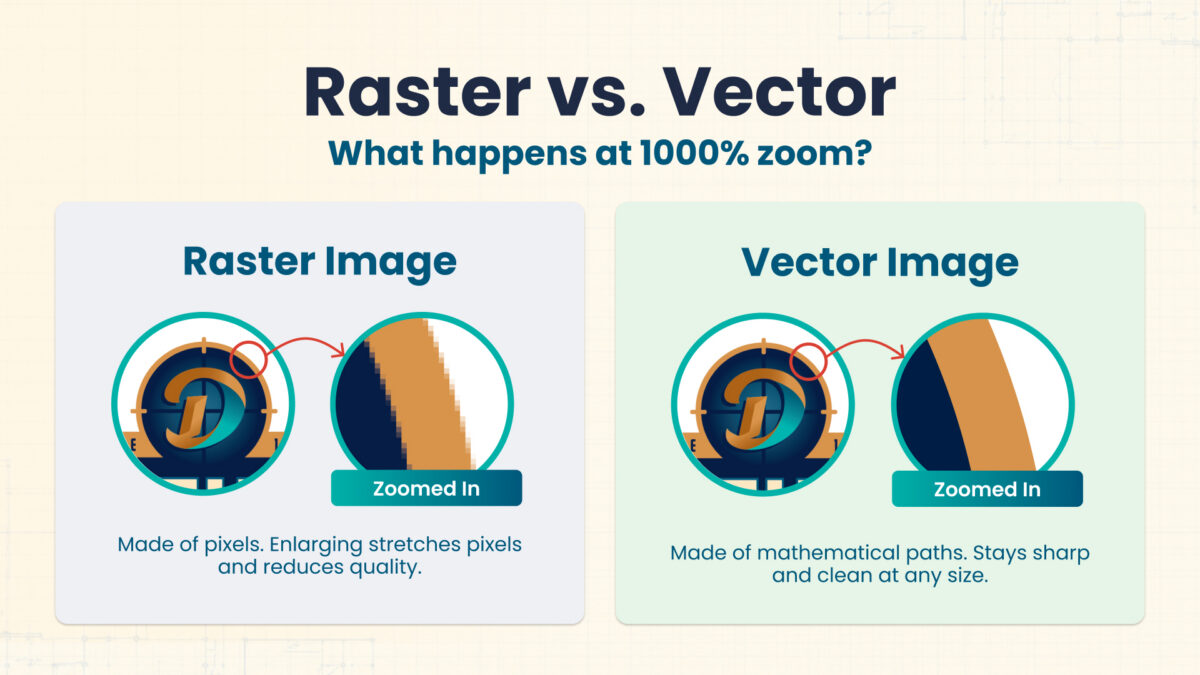
Digital artwork falls into two core categories: pixel-based images (raster) and math-based graphics (vector).
1. Raster Files (Pixel-Based)
- Most Common File Types: .JPG/.JPEG, .PNG, .TIFF, .PSD, .GIF
- How They Work: Raster images are a fixed grid of colored squares known as pixels. A standard photo might contain thousands or millions of these colored tiles arranged side by side.
- The Limitation: Because the pixel count is fixed from the moment the image is created, raster files cannot be scaled up cleanly. When you enlarge a 500-pixel web logo to fit a 48-inch building sign, your software simply stretches those individual pixels into large visible blocks. That’s how you get blurriness, artifacts, and jagged edges.
2. Vector Files (Math-Based)
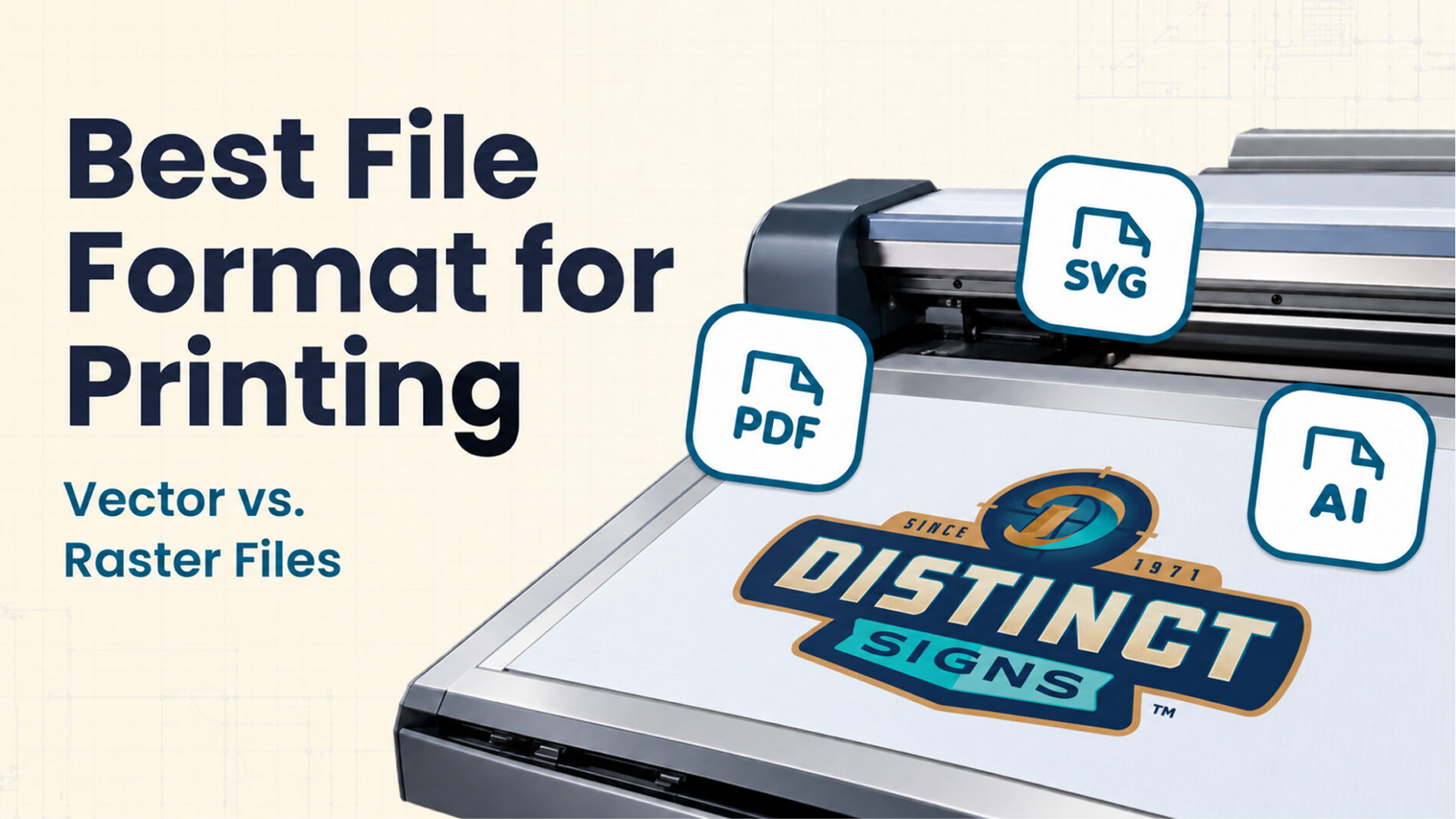
- Most Common File Types: .AI (Adobe Illustrator), .EPS (Encapsulated Postscript), .SVG (Scalable Vector Graphics), .PDF
- How They Work: Vectors do not use pixels. Instead, they are defined by mathematical formulas consisting of anchor points, lines, coordinate paths, and curves.
- The Advantage: Infinite scalability! A vector logo can be sized down to fit a tiny business card or blown up to cover a 40-foot billboard with absolute precision. The edges stay crisp, curves stay smooth, and fine details never degrade.
Why Commercial Signage Requires Vector Artwork
For exterior and interior architectural signage, vector artwork is required for optimal results.
- For Channel Letter Signs: Modern sign fabrication machines cannot read pixel data. Computerized routers, laser cutters, and metal channel letter benders require vector paths to guide the physical tools that cut through aluminum, acrylic, PVC, and wood.
- For Vinyl Graphics: Cutters use sharp physical blades that trace the exact vector outlines of your design to cut clean letters and decals out of adhesive vinyl rolls.
- For All Signs: When creating signage, fonts must be converted to “outlines” or “curves.” This transforms live typography into permanent vector shapes so your business’ custom font is maintained in the final design.
When Is Raster Acceptable (and What Are the Rules)?
While custom signage, cut lettering, and logos require vector artwork, raster files remain the industry standard for photographs, artistic textures, and realistic renderings in wide-format printing.
If your wide-format print includes raster elements, such as a construction site banner with a realistic 3D architectural rendering or a trade show backdrop featuring employee photography, keep these essential guidelines in mind:
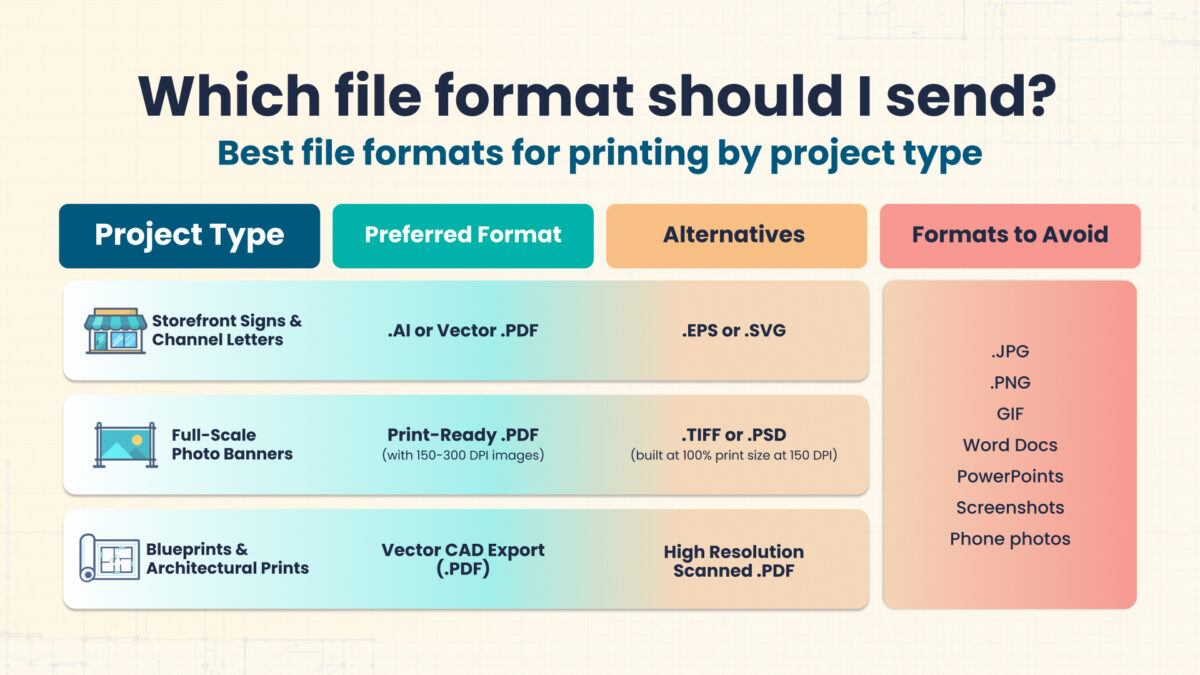
- Resolution at 100% Size: Close-range graphics, such as indoor posters and trade show exhibits, should be exported at 150 to 300 DPI (Dots Per Inch) at 100% final physical dimensions.
- Distance Viewing Allows Lower DPI: For high-mounted outdoor banners viewed from 20+ feet away, files between 100 and 150 DPI can produce great results because the human eye blends pixels at a distance.
- Avoid Screenshots or Social Media Images: Taking a screenshot or pulling a thumbnail from social media is easy, but it almost never works for your printer. These images are often capped at 72 DPI with web compression, which isn’t acceptable for any wide-format print job. Screenshots and social media images will delay your request, as we’ll have to reach back out for the original file in higher resolution.
Which Format Should I Send?
File Submission Checklist
Before uploading your next artwork file, run through this quick checklist:
- Are all logos and graphic elements in vector format (.AI, .EPS, or vector .PDF)?
- Have all fonts been converted to outlines/curves?
- Are all embedded photos at least 150-300 DPI at actual size?
- Is the document set up in CMYK color mode rather than RGB?
- Are you sending the actual source export rather than a screenshot or thumbnail image?